
Q. How to use the Camera
Here is the Step by Step Instruction on how to use the Camera :)
1. Click on the Green Icon on the Upper Right of the Screen

2. Then, Click on the Camera button.

3. Pick Full View or Adjust View. If you clicked on Full View,
The Camera will automatically take a Snap!

If you clicked Adjust View,
You will adjust the Width and Height of the photo and Take a picture.

Adjust View
4. Click Snap to Capture the Photo
5. Choose Save to Computer, Upload to Facebook, or just simply Close

6.1 Saving the Pictures to Your Computer
If you wish to save the Picture in your Documents / Desktop
1. Click " Save to Computer "
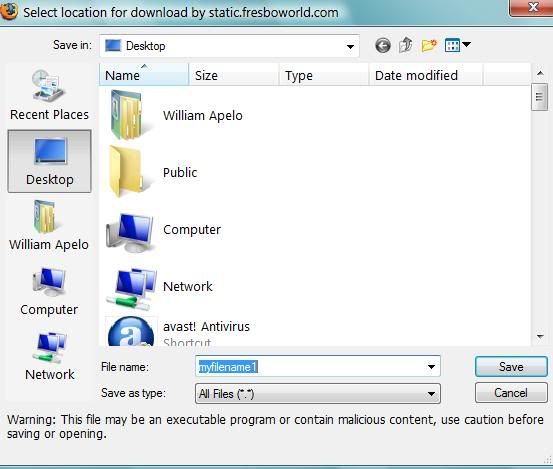
2. Then Select the location for download and change the existing file name
the picture you want to save in the computer.
6.2 Uploading Pictures to your Facebook Album
If you want to Upload the Picture/s in your Facebook Album
1. Click " Upload to Facebook "
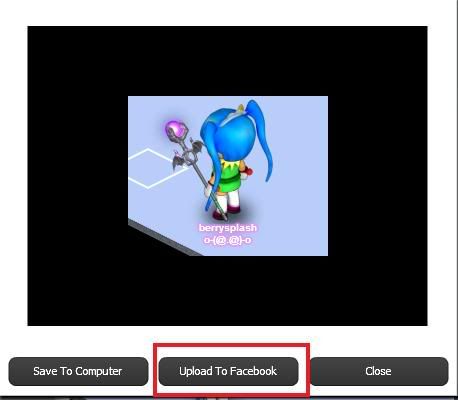
On the First Shot , A Dialog Box will Appear that say
" Photos will go into your Special Blingtown Facebook Album,
Click Ok to Open New window and allow all photos to be stored
or Cancel if you want to approve each photo Individually "
2. Click Ok or Cancel
* If you Choose Ok, A New Window will open and when you click the
" Allow Photo Permission " All the Pictures that are taken from the camera will automatically
upload and save to your Blingtown Facebook Album.
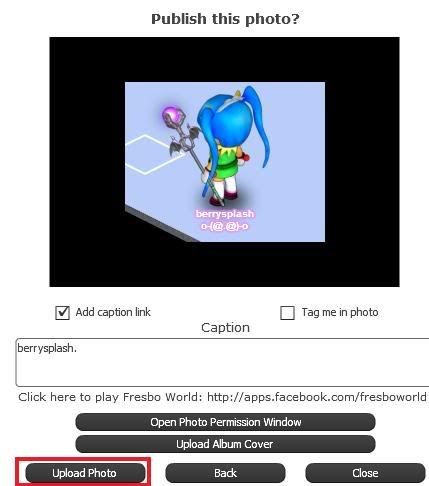
* If you Choose cancel, The Pictures will be stored on the Pending Photos and you will
decide to Approve each chosen photos to move them to your Blingtown Album by checking the box , then Clicking the " Approve Selected Photos ".
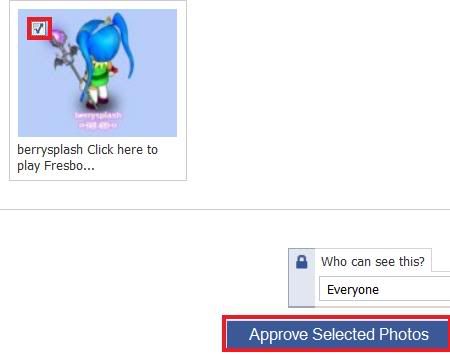
Q. Where i can find the Pending Photos
A. On your Facebook Request http://www.facebook.com/reqs.php
[ Credits ] Screenshot by: Cuteisla , Berrysplash and Me :)

Here is the Step by Step Instruction on how to use the Camera :)
1. Click on the Green Icon on the Upper Right of the Screen
2. Then, Click on the Camera button.
3. Pick Full View or Adjust View. If you clicked on Full View,
The Camera will automatically take a Snap!
If you clicked Adjust View,
You will adjust the Width and Height of the photo and Take a picture.
Adjust View
4. Click Snap to Capture the Photo
5. Choose Save to Computer, Upload to Facebook, or just simply Close

6.1 Saving the Pictures to Your Computer
If you wish to save the Picture in your Documents / Desktop
1. Click " Save to Computer "
2. Then Select the location for download and change the existing file name
the picture you want to save in the computer.
6.2 Uploading Pictures to your Facebook Album
If you want to Upload the Picture/s in your Facebook Album
1. Click " Upload to Facebook "
On the First Shot , A Dialog Box will Appear that say
" Photos will go into your Special Blingtown Facebook Album,
Click Ok to Open New window and allow all photos to be stored
or Cancel if you want to approve each photo Individually "
2. Click Ok or Cancel
* If you Choose Ok, A New Window will open and when you click the
" Allow Photo Permission " All the Pictures that are taken from the camera will automatically
upload and save to your Blingtown Facebook Album.
* If you Choose cancel, The Pictures will be stored on the Pending Photos and you will
decide to Approve each chosen photos to move them to your Blingtown Album by checking the box , then Clicking the " Approve Selected Photos ".
Q. Where i can find the Pending Photos
A. On your Facebook Request http://www.facebook.com/reqs.php
[ Credits ] Screenshot by: Cuteisla , Berrysplash and Me :)



No comments:
Post a Comment