
 Getting Your Bearings
The User Interface
 CLICK THE IMAGE FOR LARGER VIEW
1. Number of Workers - Display the Current Numbers of your Workers ( Friends in Facebook using Blingtown Application )
2. Current location - Mouse over the this label to reveal more details about your current location in Blingtown
3. Current time - The current time (GMT +8)
4. Normal Mode / Interact Mode - Choose Normal or Interact Mode
A. Normal mode Set ( For Walking)
B. Interact Mode ( View the whole Location (By Dragging and Drop the Mouse)
* Interacting Furnitures ( Moving , Rotating , Adjusting, View the Info, Put back to
Inventory, and Label .. ( By Clicking the Furniture )
5. Camera - Take Picture
A. Take Snapshot with Full View - Take Picture the Whole Location
B. Adjust View - Adjust Width and Height
C. Snap - Upload to Facebook Album or Save to your Desktop
6. Adjust BGM Sound
7. Hide Mini Map - Click to Hide Mini Map
8. Events List - Event that Happens on Blingtown Hosted by Players, Admin - Mods,
A. Browse Event - Browse Scheduled Events
B. Host a event - Date , Time , Compulsory Event Name and Event Description ( Event Cost 500 Points or 100 Credits )
C. Cancel Event - Cancel Event hosted by yourself
9. Zoom out / Zoom in - Zoom Out Negative Sign ( - ) / Zoom in Positive Sign ( + )
10. Mini Map - Mini map in your current location
11. Browse Location Button
12. NPC ( Non - Playable Character )
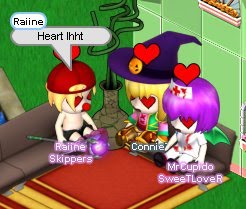
13. Avatar Display
14. Message log control - This button can be clicked to toggle the visibility of the message log, or be dragged to resize it.
15. Message log - All chat and system messages will appear here
16. Chat input - Here is where you enter your chat messages
17. Emotes button - Clicking this opens up a emote panel where you can pick which emote to perform
18. Character button - Clicking this opens up your character panel where you can change your worn outfit
19. Inventory button - Clicking this opens up your inventory where you can drag items to be worn, used or traded
20. Quest
21. Achievements
22. Craft Stone Products
23. Home button - Clicking this button immediately brings you back to your home or Rooms.
24. Socials button - Clicking this button opens up your social panel whereyou can add/remove friends , perform guild functions , open mentor tab, and sees who's online.
25. Mail button - Clicking this button opens up your mail panel where you can send in-game mail and read received mail
26. Shop - Show the wide range of Avatars , Furnitures and Items for you to buy.
2. Current location - Mouse over the this label to reveal more details about your current location in Blingtown
3. Current time - The current time (GMT +8)
4. Normal Mode / Interact Mode - Choose Normal or Interact Mode
A. Normal mode Set ( For Walking)
B. Interact Mode ( View the whole Location (By Dragging and Drop the Mouse)
* Interacting Furnitures ( Moving , Rotating , Adjusting, View the Info, Put back to
Inventory, and Label .. ( By Clicking the Furniture )
5. Camera - Take Picture
A. Take Snapshot with Full View - Take Picture the Whole Location
B. Adjust View - Adjust Width and Height
C. Snap - Upload to Facebook Album or Save to your Desktop
6. Adjust BGM Sound
7. Hide Mini Map - Click to Hide Mini Map
8. Events List - Event that Happens on Blingtown Hosted by Players, Admin - Mods,
A. Browse Event - Browse Scheduled Events
B. Host a event - Date , Time , Compulsory Event Name and Event Description ( Event Cost 500 Points or 100 Credits )
C. Cancel Event - Cancel Event hosted by yourself
9. Zoom out / Zoom in - Zoom Out Negative Sign ( - ) / Zoom in Positive Sign ( + )
10. Mini Map - Mini map in your current location
11. Browse Location Button
12. NPC ( Non - Playable Character )
13. Avatar Display
14. Message log control - This button can be clicked to toggle the visibility of the message log, or be dragged to resize it.
15. Message log - All chat and system messages will appear here
16. Chat input - Here is where you enter your chat messages
17. Emotes button - Clicking this opens up a emote panel where you can pick which emote to perform
18. Character button - Clicking this opens up your character panel where you can change your worn outfit
19. Inventory button - Clicking this opens up your inventory where you can drag items to be worn, used or traded
20. Quest
21. Achievements
22. Craft Stone Products
23. Home button - Clicking this button immediately brings you back to your home or Rooms.
24. Socials button - Clicking this button opens up your social panel whereyou can add/remove friends , perform guild functions , open mentor tab, and sees who's online.
25. Mail button - Clicking this button opens up your mail panel where you can send in-game mail and read received mail
26. Shop - Show the wide range of Avatars , Furnitures and Items for you to buy.
27. Avatar -Your Avatar in Blingtown. The Screen View will always center yourself in the middle.
28. World Environment - Here is where all the world activities happens.
28. World Environment - Here is where all the world activities happens.


No comments:
Post a Comment